Three ways to animate a logo without After Effects
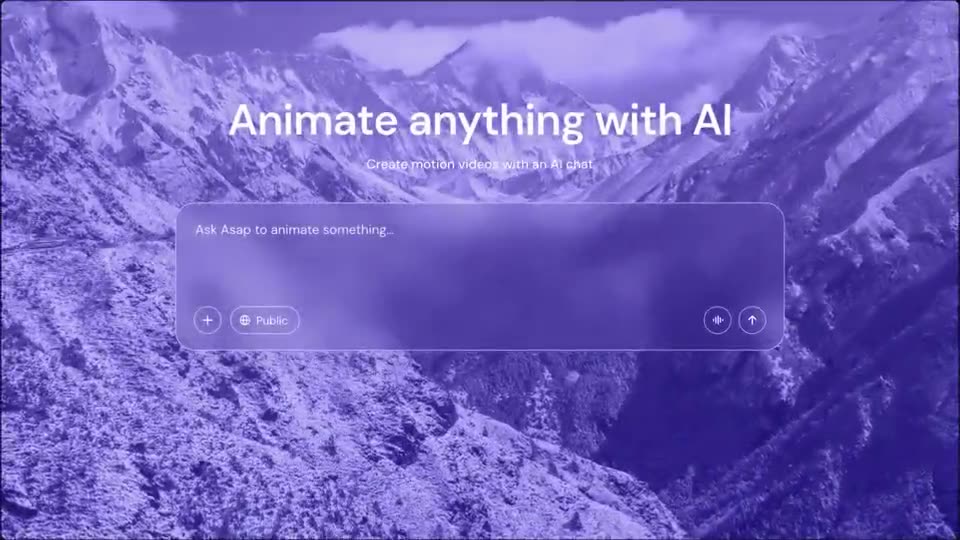
- Generate it from a prompt. Upload your logo to a browser-based AI motion tool and describe the reveal. Fastest, and good enough for most intros, end cards and social posts.
- Start from a template. Open a template that already ends on a logo close, then swap in your mark and colors.
- Animate it by hand in a lighter tool. Browser animation tools let you keyframe position, scale and opacity without learning After Effects. Slower, with more control.
Most teams need the first or second. This guide walks through both in ASAP Motion.
Prepare your logo file
- Use a PNG with a transparent background, at least 1,000 pixels wide, or larger if you plan to export in 4K.
- If your logo has a separate mark (symbol) and wordmark, export them as two files. Animating them separately is what makes a reveal feel designed.
- Keep files under 15 MB, the per-file upload limit in ASAP Motion.
Option 1: Generate the animation from a prompt
Create a new project, add your logo as an image, and describe the reveal. Good logo prompts name the format, the motion and the ending:
A 4-second 16:9 logo reveal on a dark background. The mark scales up from the center with a soft overshoot, then the wordmark slides in from the right. Hold the full logo for one second at the end.
A 3-second square logo sting for social. The logo draws in line by line on a white background, with a subtle brand-orange glow behind it at the end.
A 5-second YouTube intro. Short kinetic words “Build. Ship. Repeat.” appear one at a time, then collapse into the logo.
ASAP Motion builds the animation around your file. Then adjust timing and colors in the editor and export.
Option 2: Use a template with a logo close
Several templates end on a logo lockup you can replace:
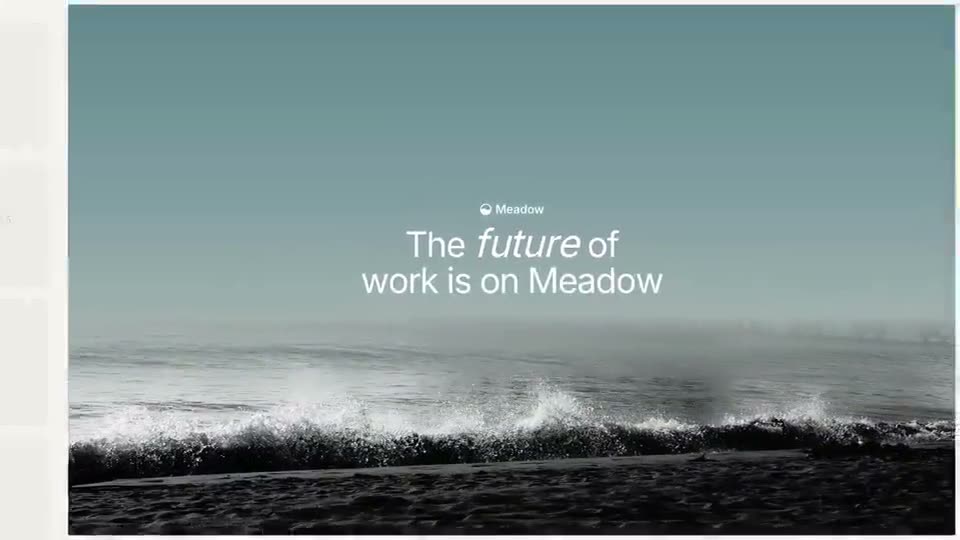
- Funding Announcement: a calm logo close after editorial type.
- AI Studio Product Reveal: a cinematic reveal with a clean logo finish.
- Security Scan Feature Launch: a zoom-through that ends on the logo.
Swap the logo, set your brand color, and trim the scenes before the close if you only want the sting.
What makes a logo animation look good
- Keep it short. Two to four seconds for an intro or end card; up to six for a standalone sting.
- End still. Hold the finished logo for at least a second. The last frame is what people remember.
- Animate parts, not the whole. Moving the mark and wordmark separately reads as intentional; scaling the whole file reads as a template.
- Match motion to the brand. Soft easing and fades for calm brands; snappy scale and overshoot for energetic ones.
- Mind the background. Test the logo on the background you will actually use. Thin wordmarks disappear on busy backgrounds.
Export settings
Export an MP4. For a YouTube or website intro use 16:9; for social stings use 1:1 or 9:16. 1080p at 30 fps is fine for most uses; choose 4K and 60 fps on Pro or Studio for large screens or very fast motion. See export settings for motion graphics.
When you still need After Effects
If your logo animation needs particle simulations, 3D extrusions, liquid morphs or frame-perfect sync to a sound design, a motion designer in After Effects is still the right call. For everything else, see the logo animation use case for more prompts.