Disclosure: this guide is published by ASAP Motion, one of the tools it covers. We describe other products from their own public pages and do not quote their prices, which change often. Check each vendor for current plans.
What counts as an AI motion graphics generator
“AI motion graphics” covers three quite different kinds of tool, and most bad buying decisions come from comparing across kinds:
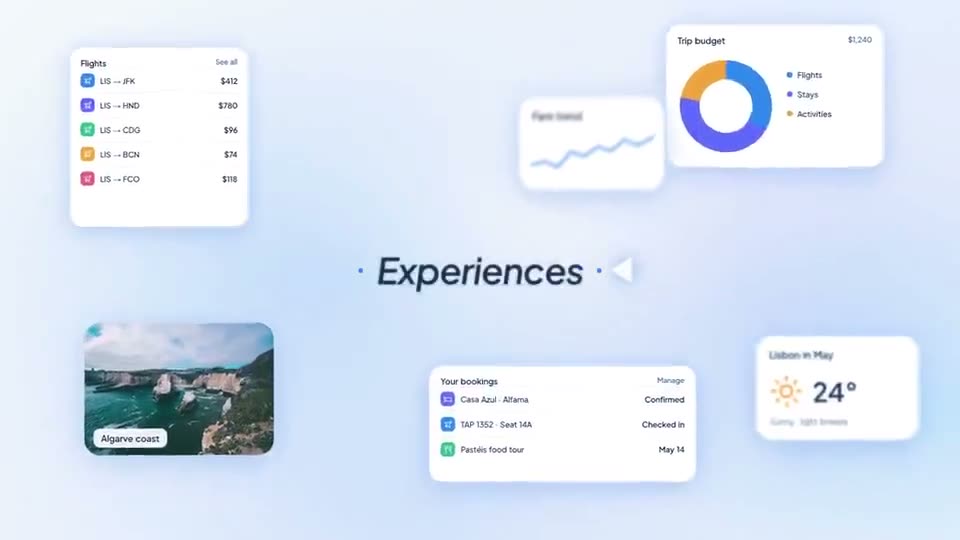
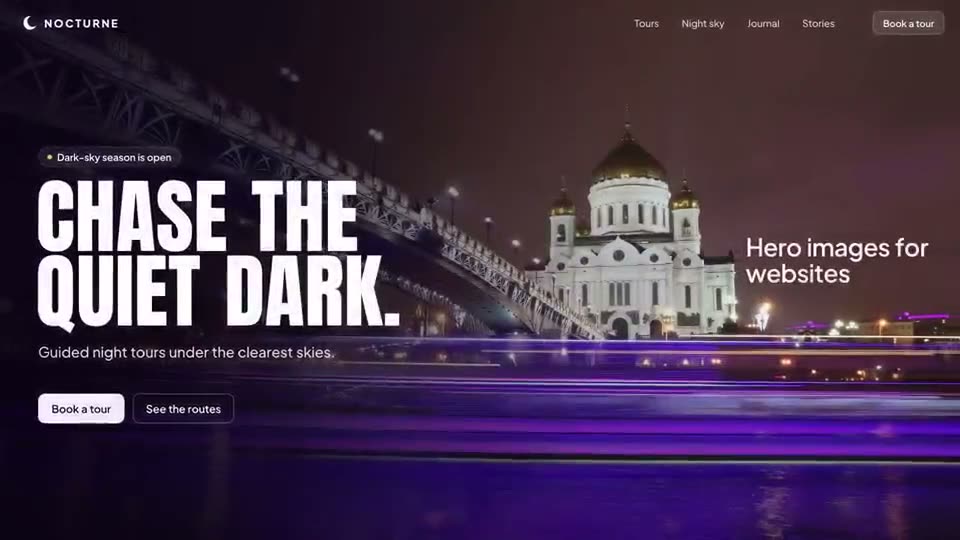
- Prompt-first motion graphics tools. You describe the video, and the tool builds designed layers: type, shapes, product screens, charts and logos that move. The result is an editable project. ASAP Motion, Hera and MotionVid’s motion graphics mode work this way.
- AI video generators. You describe a shot, and a model generates footage pixel by pixel. Great for cinematic b-roll and impossible camera moves; poor at exact text, brand colors and screenshots. Runway is the best-known example.
- Design and animation tools with AI features. You animate by hand on a canvas or timeline, and AI helps with drafts, effects or variations. After Effects, Jitter and Canva sit here, each at a different level of depth.
If your video needs your exact headline, your logo and real screenshots, you want the first kind. If it needs a drone shot over a city that does not exist, you want the second.
The tools worth testing in 2026
ASAP Motion
A browser-based AI motion graphics generator and editor (ours). You start from a prompt, an image or video reference, a gallery of editable templates, or your product website: the Launch video card reads the site, proposes a storyboard to confirm, and builds a 15, 30 or 45 second launch film. You then edit text, colors, layers, media and timing, and export an MP4 in 16:9, 9:16 or 1:1, up to 4K at 60 fps on paid plans. There is a free plan; free exports carry a small watermark.
Best for: launch videos, feature announcements, app promos, brand reels and kinetic typography where the result has to be on-brand and editable.
Hera
An “AI motion designer” that turns natural-language prompts into editable motion graphics. Its public material emphasizes animated infographics, overlays for talking-head video, explainers, brand kits and a website-to-launch-video workflow, plus an API and an MCP server for developers.
Best for: charts, infographics and overlays, and teams that want to generate motion from code. See our ASAP Motion vs Hera comparison.
MotionVid
A broad AI video platform: motion graphics from a chat prompt, plus generated cinematic footage, AI images and consistent characters from its own models, with a large catalog of short templates and an app inside ChatGPT.
Best for: teams that want generated footage and images alongside motion graphics in one place. See ASAP Motion vs MotionVid.
Adobe After Effects
The professional standard for motion design and compositing: frame-level control, expressions, plug-ins and 3D. It is not an AI generator, and it has a real learning curve.
Best for: complex, fully custom animation and visual effects by someone who already knows it. See ASAP Motion vs After Effects.
Jitter
A collaborative motion design tool on the web, popular with product designers for UI animation. You animate on a canvas, remix templates, and use AI to generate editable animations and variations. It exports to video and to formats used in apps and websites.
Best for: designers animating product UI by hand. See ASAP Motion vs Jitter.
Canva
A general design suite where video is one format among many. Its animated templates and simple animations are fine for social posts and presentations made by non-designers.
Best for: teams already designing everything else in Canva. See ASAP Motion vs Canva.
Runway and other video models
Generative video models create footage from text or images. Use them for shots you cannot film, then put titles and graphics on top with a motion graphics tool.
How to test a motion graphics generator in 20 minutes
Marketing pages all look good. Run the same brief through every tool you are considering:
- Use your real brief. Your product name, a real headline, one real screenshot and your logo. Generic prompts hide the problems you will hit later.
- Check the text. Is every word spelled the way you typed it? Can you change one word without regenerating the whole video?
- Check the brand. Can you set your exact colors and use your logo file? Does the result still look like you?
- Check the editing. Change the timing of one scene, swap one image, delete one scene. If any of these means starting over, the tool will cost you hours later.
- Check the export. Do you get the aspect ratios you need (16:9, 9:16, 1:1), the resolution you need, and a file without a watermark on the plan you would buy?
- Check the cost per finished video. Count credits or generations used by your test, including the retries, not the number on the pricing page.
Which one should you pick?
- You launch products and post on social every week: a prompt-first motion graphics tool. Start with a free plan, run the test above, and keep the one whose first draft needs the least fixing.
- You need cinematic shots: a video model, plus a motion graphics tool for titles and end cards.
- You are a motion designer who wants control of every frame: After Effects, or Jitter for UI work.
- You design everything in one suite already: stay there for simple animated posts, and add a dedicated tool when the animation itself becomes the deliverable.
If you want to try the first route, ASAP Motion’s templates and use cases are a quick way to see what a first draft looks like before you write a prompt.