Step 1: Decide what the video has to do
A launch video has one job: make the right person understand what you built and want to try it. Before you open any tool, write down three things:
- Who it is for, in their words (“solo founders who hate writing release notes”), not your category (“AI productivity platform”).
- The one thing they should remember. If you have five features, pick the one that makes people try it.
- Where it will play. A landing page hero, a Product Hunt gallery, LinkedIn, X and a newsletter each want a slightly different cut.
Step 2: Write a five-beat script
Almost every launch video that works follows the same five beats. Use the launch video script template for the full version; the short form is:
| Beat | What it does | Share of the video |
|---|---|---|
| Hook | Names the outcome or the pain | First 2 to 3 seconds |
| Problem | One line on what is broken today | About 10% |
| Product | The product in use, on real screens | About 50% |
| Proof | One number, quote or before-and-after | About 15% |
| Call to action | Exactly where to go next | Last 3 to 5 seconds |
Keep on-screen lines to three to eight words. People watch launch videos with the sound off.
Step 3: Gather real screens
The product beat is half the video, and it only works with real screenshots or screen recordings. Capture them at full resolution, crop out browser chrome and personal data, and pick the two or three screens that show the outcome, not the settings page.
If you have a logo, export it as a PNG with a transparent background.
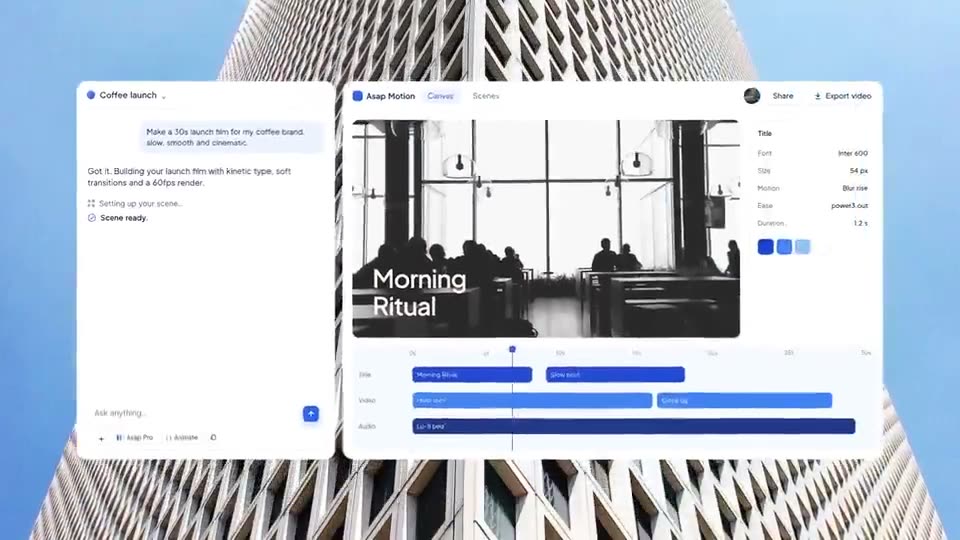
Step 4: Generate the first draft
You have three ways to start in ASAP Motion:
- From your website. Open the Launch video card in the dashboard and paste your product URL, or a short brief if the site is thin. ASAP Motion reads it, proposes a storyboard for you to confirm, then builds a 15, 30 or 45 second film. Credits are only spent when you confirm. See how to turn your website into a launch video.
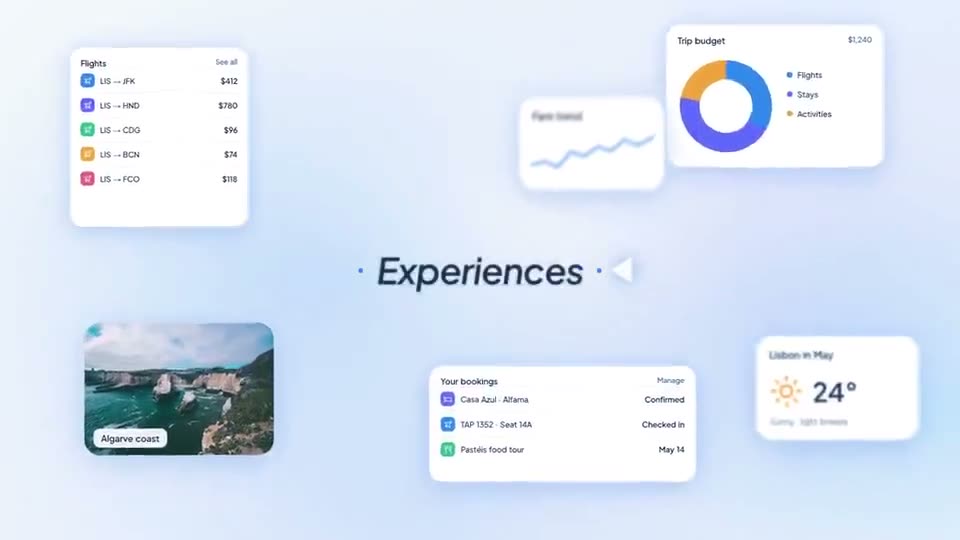
- From a template. Pick a launch film from the product launch templates, such as Travel App Launch or Creative Tool Launch Film, and replace its content.
- From a prompt. Describe the video in a few sentences, with your headline in quotes. The prompt guide has examples.
Whichever you choose, treat the result as a draft, not a finished video.
Step 5: Edit like an editor
Go through the draft scene by scene:
- Copy: replace every generic line with your own words. Read it aloud; cut anything that sounds like a brochure.
- Screens: swap placeholders for your screenshots, and check that each one is readable at the size it appears.
- Brand: set your colors and logo. One accent color is usually enough.
- Timing: give each line enough time to read. A rough rule is one second per three words, plus half a second.
- Ending: hold the call to action and logo for at least two seconds.
Step 6: Keep it the right length
| Where it plays | Length |
|---|---|
| Landing page or launch post | 30 to 60 seconds |
| Product Hunt gallery | 30 to 60 seconds |
| LinkedIn and X | 20 to 45 seconds |
| Reels, TikTok and Shorts | 15 to 30 seconds, in 9:16 |
Make the long version first, then cut a short one by removing the problem beat and all but one product scene.
Step 7: Export the right files
Export an MP4 in 16:9 for your site and YouTube, and make a 9:16 version for vertical feeds. 1080p at 30 fps is right for almost everything; use 4K for large screens and 60 fps for fast motion. Export settings for motion graphics covers the details.
A checklist before you post
- The first frame says something, even with the sound off.
- Every claim on screen is true today.
- Every screenshot is current and free of test data.
- The call to action names a place, not just “learn more”.
- You have both a 16:9 and a 9:16 file.
- The video is uploaded natively to each platform, not linked.