Why feature videos get ignored
Most feature announcements fail for the same three reasons: they bundle several features into one clip, they describe the feature instead of showing it, and they end without telling anyone where to find it. Fix those three and a 30-second clip will do more than a long blog post.
The structure: four beats
| Beat | What to show | Length |
|---|---|---|
| Name | “Introducing [feature]” or the outcome it gives | 2 to 4 s |
| Input | The real thing a user does: a typed request, an upload, a click | 4 to 10 s |
| Output | What the product produces, large enough to read | 8 to 20 s |
| Where | The exact place to try it, and who has it | 3 to 5 s |
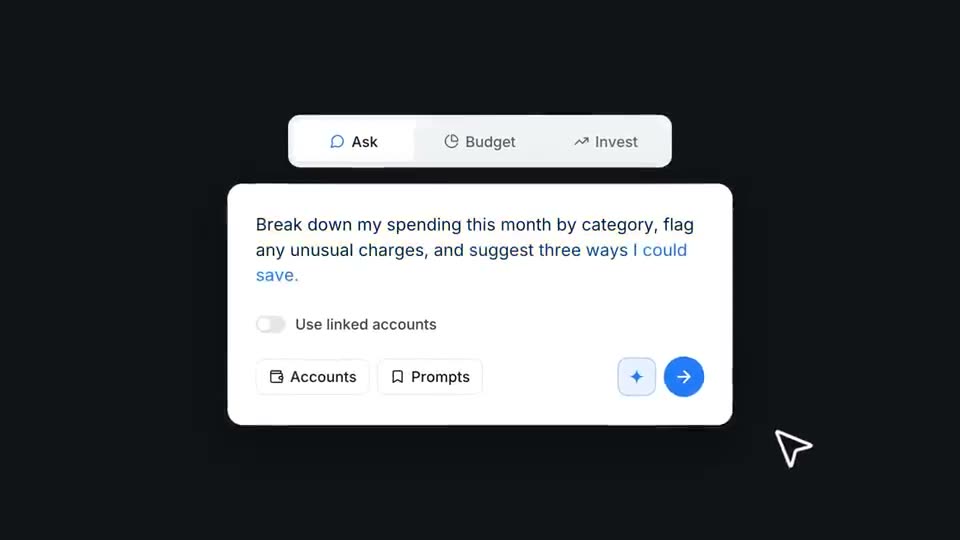
That is 20 to 40 seconds. A single-feature teaser like Finance Assistant Teaser does it in about 25 seconds and four scenes; a feature with several outputs, like Brand Kit Feature Launch, needs closer to 45.
Show input and output
The input and the output are the whole story. Make them concrete:
- Use a real input. Type the request a customer would actually type, with their kind of detail. “Summarize last week’s churn by plan” beats “Analyze my data”.
- Use a real output. Screenshot what the product really produced from that input. A mocked result is easy to spot and erodes trust.
- Give the output time. It is the payoff. Hold it at least as long as the input.
Make one video per feature
A changelog clip that lists five features is remembered for none. Make a short video per feature, then reuse them:
- in the changelog entry and release email,
- natively on LinkedIn and X,
- in the help article for the feature,
- in onboarding, where new users first meet it.
End on where to find it
Say exactly where the feature lives and who has it: “In the editor, under Brand Kit. On Pro and Studio.” A vague “try it today” wastes the most important seconds of the video.
Build it in ASAP Motion
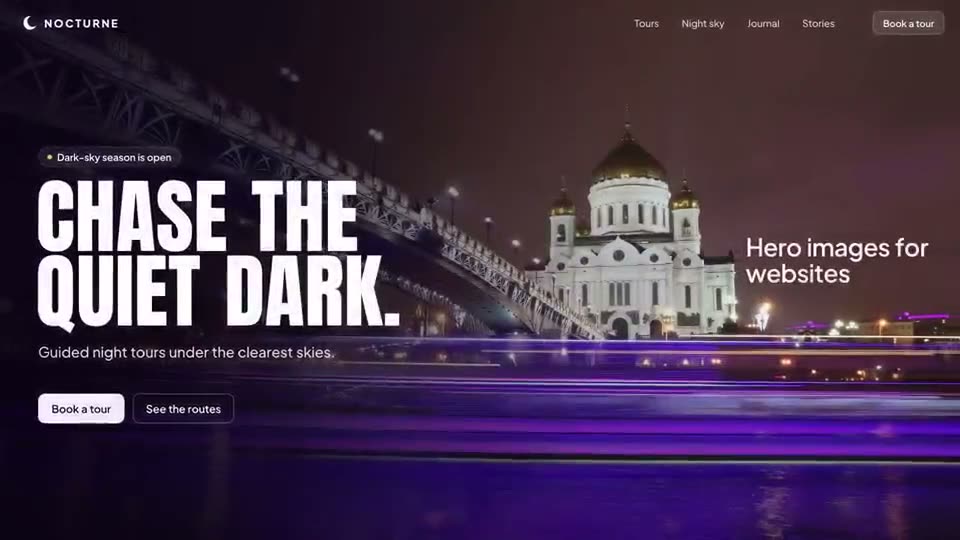
- Open one of the feature announcement templates. Security Scan Feature Launch suits technical products; AI Assistant Feature Demo suits anything with a prompt.
- Replace the feature name, the typed input and the result screens with your own.
- Change the end card to say where the feature lives.
- Export an MP4. Make a 9:16 cut for vertical feeds if you post there; the vertical video guide covers safe zones.
If you would rather start from a description, write a prompt with the four beats in order and your exact feature name in quotes. See how to write prompts for AI motion graphics.
A quick checklist
- One feature, one video.
- The first frame names the feature or its outcome.
- The input and output are real, and readable on a phone.
- The end card says where to find it and on which plan.
- The video works with the sound off.