Why real screenshots matter
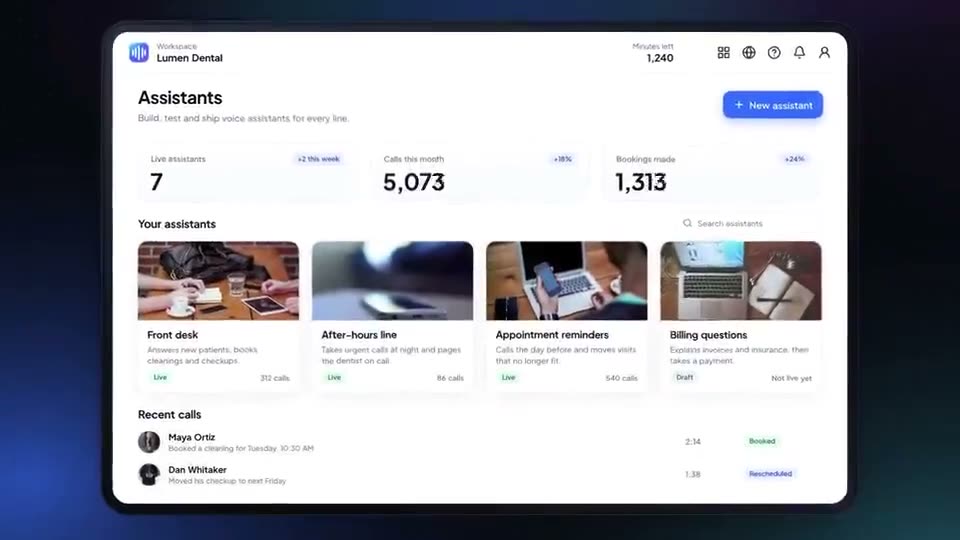
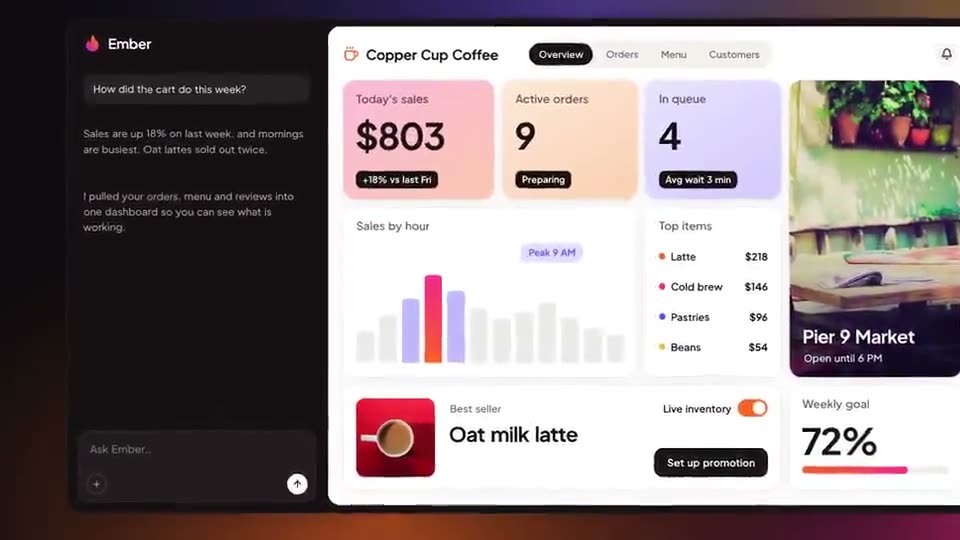
An AI tool can draw a convincing interface from a prompt. That is fine for a mood film, and wrong for a product demo. A demo is a promise: the person who signs up after watching expects to see those screens. Invented buttons, made-up numbers and a logo that is almost yours break that promise and are easy to spot.
So the rule for an AI product demo is simple: let AI do the motion, the framing, the labels and the pacing, and keep the product itself real.
Step 1: pick three screens
Most demos need exactly three screens:
| Screen | Shows | Label example |
|---|---|---|
| Start | Where the user begins | “Connect” |
| Action | The one thing they do | “Ask” |
| Result | What the product gives back | “Done” |
If your workflow needs more, split it into two demos rather than cramming seven steps into one. Capture each screen at full size, crop out the browser bar, and use realistic data you are happy for anyone to see.
Step 2: write one benefit label per screen
Under each screen, write the benefit in five words or fewer: “Your calendar, connected”, “Ask in plain English”, “Report ready in seconds”. These labels carry the demo for people watching muted, which is most people in a feed. Avoid claims you cannot back up on your own site.
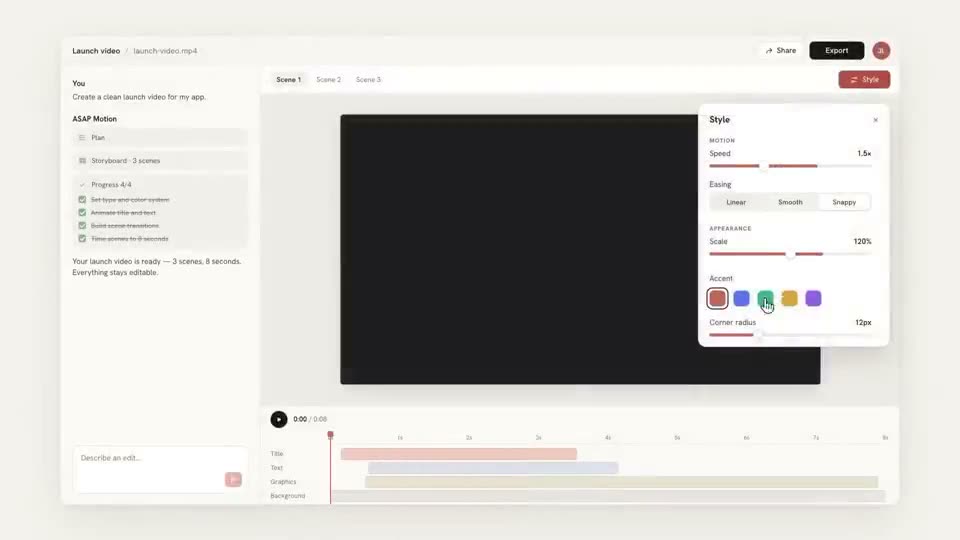
Step 3: build the demo in ASAP Motion
- Open a product demo template. Minimal Product Walkthrough is a calm five-step layout; Voice Agent Builder Walkthrough suits a more energetic product.
- Upload your three screenshots (images or video up to 15 MB each) and drop one into each scene’s screen.
- Replace the step labels and headline with your benefit labels.
- Replace the logo and accent color with yours.
If you prefer to start from a prompt, describe the three steps and attach the screenshots as references, then check the result against the fidelity list below before you go further.
Step 4: check text and logo fidelity
Before you export, play the demo at full size and check every scene:
- Every word on screen is either your label or text from your real product.
- Every number matches what the product would show, or is clearly sample data.
- The logo is your uploaded file, not a lookalike.
- No extra UI: no buttons, menus or panels your product does not have.
Anything that fails, replace it with your own screenshot or text. This is the step that makes the difference between a demo people trust and one they doubt.
Step 5: retime and export
Hold each screen for at least two seconds, and the result screen longer than the others: it is the payoff. Then export a 16:9 MP4 for your site and sales emails. Free exports are 1080p with a small watermark; Pro and Studio export up to 4K at 60 fps without one.
When your product changes
Your interface will change within weeks. Because the demo is an editable project rather than a flat video, you do not remake it: open the project, swap the screenshot that changed, adjust the label if needed, and export again. Keep the project named by product area so the next update takes minutes.
When a screen recording is the better choice
A motion demo is best for showing what a product does in under a minute. Record your screen instead when:
- viewers need to follow every click, as in a tutorial or support article,
- the workflow is long and the order of small steps matters,
- the point is showing real speed or real data live.
Many teams use both: a 30-second motion demo on the landing page, and a narrated screen recording in the help center. For how the formats compare, see the product demo video use case.