What you need
- A Pro or Studio plan on ASAP Motion. The MCP server is included on both.
- Claude (desktop or web), Claude Code, or Cursor. The steps are almost the same in each; the MCP server page has every client.
- Your product’s website, or a short brief if the site is thin. Three real screenshots help.
Step 1: connect ASAP Motion to Claude
Claude desktop or web: open Settings → Connectors → Add custom connector. Name it ASAP Motion and paste the server URL:
https://studio.asapmotion.co/mcpClick Connect and sign in with your ASAP Motion account. Then enable ASAP Motion in the chat’s tool menu.
Claude Code: run this in your terminal and approve the sign-in when it opens:
claude mcp add --transport http asap-motion https://studio.asapmotion.co/mcpCursor: add the same URL as a custom MCP server in Cursor’s settings (or ~/.cursor/mcp.json) and sign in when asked.
Step 2: ask for the video, and ask to see the storyboard
Be specific about length and stop the agent before it builds:
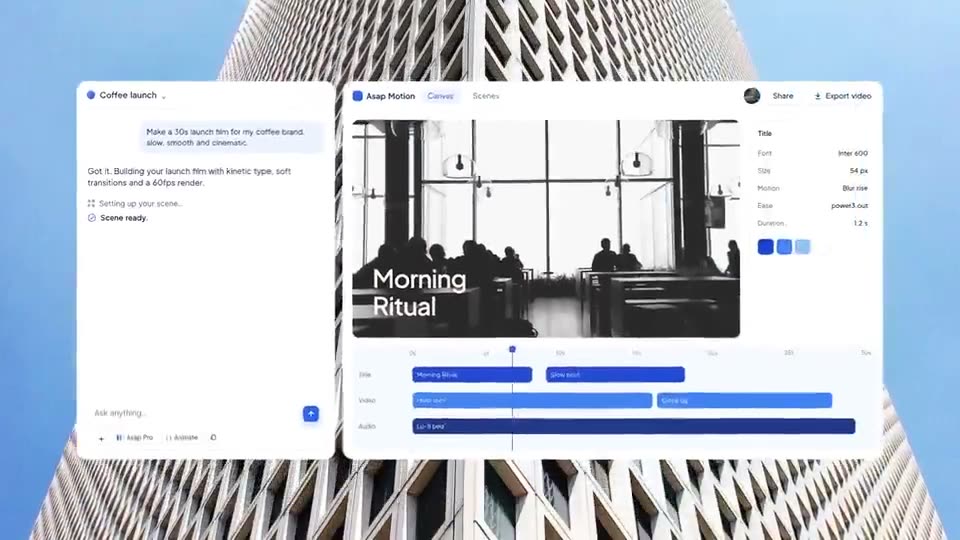
Make a 30-second launch video for https://yourproduct.com with ASAP Motion.
Show me the storyboard before you build it.
Claude calls ASAP Motion’s launch tools: it reads your site, sets the brand and story, then plans the beats. ASAP Motion picks scenes that fit each beat, and Claude writes every line. You get the storyboard back in the chat.
Step 3: fix the storyboard in words
This is the cheapest moment to change anything. Read it the way you would check a storyboard in the app:
- Is the hook about the user’s outcome, not your company?
- Is every claim true? Ask Claude to remove anything you would not put on your own site.
- Is the order right: problem, product, proof, call to action?
Reply in plain language: “Swap scenes 2 and 3, and change the proof line to the customer quote from our homepage.”
Step 4: build, and let it look at its own work
When the storyboard is right, say “Build it.” Building runs as a job: Claude starts it, then follows it with get_job until the project is ready. Ask it to check the result before you look:
Render stills of each scene and fix any text that is cut off or hard to read.The connector gives Claude frames as images and the text on screen as data, so it can catch overlaps and clipped words itself.
Step 5: fix one scene without starting over
Open the project in ASAP Motion in your browser: it is a normal project in your account, and the editor shows Claude’s changes as they land. Then fix things either way:
- By asking: “In scene 3, replace the dashboard image with the screenshot I’m uploading, and hold it a second longer.”
- By hand: click the scene in the editor and change the text, image or timing yourself.
Edits you make by hand are not overwritten: if Claude tries to change a file you just edited, it is told the file changed and reads it again. If a change goes wrong, ask Claude to undo it, or use the editor’s history.
Step 6: export
Export it as a 1080p MP4.Exports go through your plan, exactly as in the web app: up to 4K at 60 fps on Pro and Studio, counted against your monthly exports and credits. The export runs as a job and returns download links.
Prompts that work well
- “Use our brand colors from the website, and keep every headline under six words.”
- “Make a 15-second 9:16 cut of the same film for Reels.”
- “Review the motion and fix anything that feels rushed.”
- “Start from the Travel App Launch template instead and put our product in it.”
When to use the app instead
If you want to click through options and see each stage, the Launch video card in the app does the same flow by hand. The connector is best when you already live in Claude or Claude Code, want to script changes across several videos, or want the agent to handle the first draft while you do something else.