The three canvases you need
Almost every social placement reduces to three shapes. Pick the shape first, because it decides where your text can safely sit.
| Format | Ratio | Size | Typical placements |
|---|---|---|---|
| Portrait | 9:16 | 1080 × 1920 | Instagram Reels and Stories, TikTok, YouTube Shorts |
| Square | 1:1 | 1080 × 1080 | Feed posts, paid ads, LinkedIn and X timelines |
| Landscape | 16:9 | 1920 × 1080 | YouTube, your website, presentations, LinkedIn and X |
These are the three canvases ASAP Motion creates, and each exports as an MP4. The “typical placements” column is a starting point, not a rule: most networks accept more than one shape, and their accepted sizes, length limits and file limits change. Check the platform’s own upload help before you publish.
Choose by where the thumb is
Portrait fills a phone screen, which is why short-form apps use it. Landscape is the right shape on a desktop or a TV, and it is how most websites embed video. Square sits between them: it takes up more of a mobile feed than landscape does, and it still looks reasonable on desktop.
A practical decision rule:
- People will swipe to it on a phone (Reels, TikTok, Shorts): use 9:16.
- People will scroll past it in a feed: try 1:1, or 9:16 if the network displays tall video well.
- People will click play on a page: use 16:9.
If you are unsure, make the portrait version first. It is the hardest to adapt from a wide video and the easiest to fit into a feed after the fact.
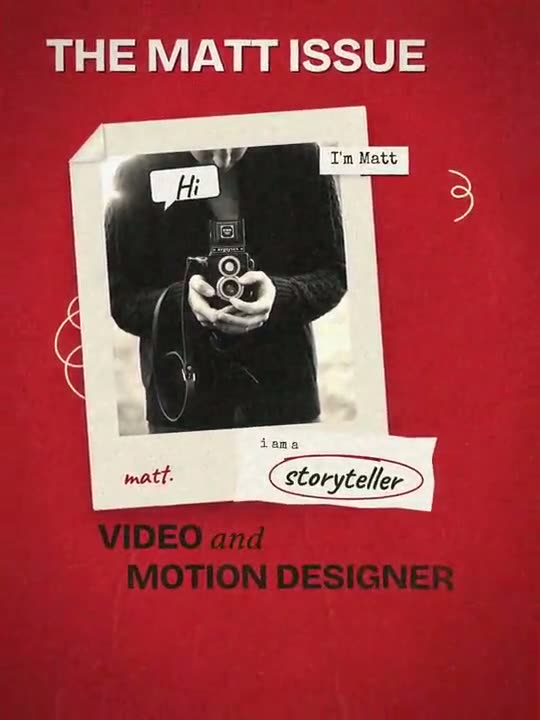
Keep text inside the safe area
Apps draw their own interface over your video: usernames, captions, buttons, progress bars. Treat the outer edge of the frame as unreliable for anything that must be read.
For portrait video, a cautious layout keeps the headline in the middle, avoids roughly the top eighth and the bottom fifth of the frame, and leaves a margin on the right for buttons. Background color and photography can run to the edges. For square and landscape video, a consistent margin of about 5 percent keeps text from being cropped by players and previews.
Layouts differ between apps and change over time, so preview a draft on the actual network before you finalise a series. The vertical video guide covers portrait safe areas in more detail.
Design for the smallest screen
Most social video is watched on a phone, often without sound and often in passing. Design for that:
- Large type. If you cannot read a line from arm’s length on a small screen, it is too small.
- Short lines. Three to six words per line works in portrait. Landscape can carry a little more.
- Strong contrast. Thin type over a busy photo disappears once the app compresses the video.
- Sound-off first. The message has to work as text on screen. Audio is a bonus.
One message, three layouts
Do not stretch one layout across three shapes. Keep the message and rebuild the composition:
- Portrait: stack elements vertically. One idea per scene, large headline, product screen below or behind it.
- Square: centre the subject and keep the headline within two or three lines.
- Landscape: use the width for side-by-side comparisons, a screen on one side and copy on the other.
In ASAP Motion you can switch a project’s aspect ratio in the editor and then adjust each scene. Duplicate the project first so you keep the original. The repurposing guide walks through that workflow.
Export settings that suit social
Export an MP4. 1080p is enough for social, because networks recompress uploads anyway. Use 30 fps for most designed motion, and consider 60 fps for fast movement where your plan includes it. 4K is available on paid plans, and it is mainly useful for your own website or a large display. Details are in the export settings guide.
Upload the file directly to each network instead of sharing a link to another site; native uploads are generally what the apps are built to present.
Pre-publish checklist
- The format matches the placement.
- Text stays inside the safe area and is readable on a phone.
- The first frame makes sense on its own.
- The video works with the sound off.
- The call to action names a real destination.
- You checked the platform’s current upload rules.
For a faster start, describe the post in a prompt or begin from a template, choose the format, and replace the sample content with your own. The social media animation use case has prompts for each format.